
Game Settings
GTA V Best Settings for 4GB RAM PC

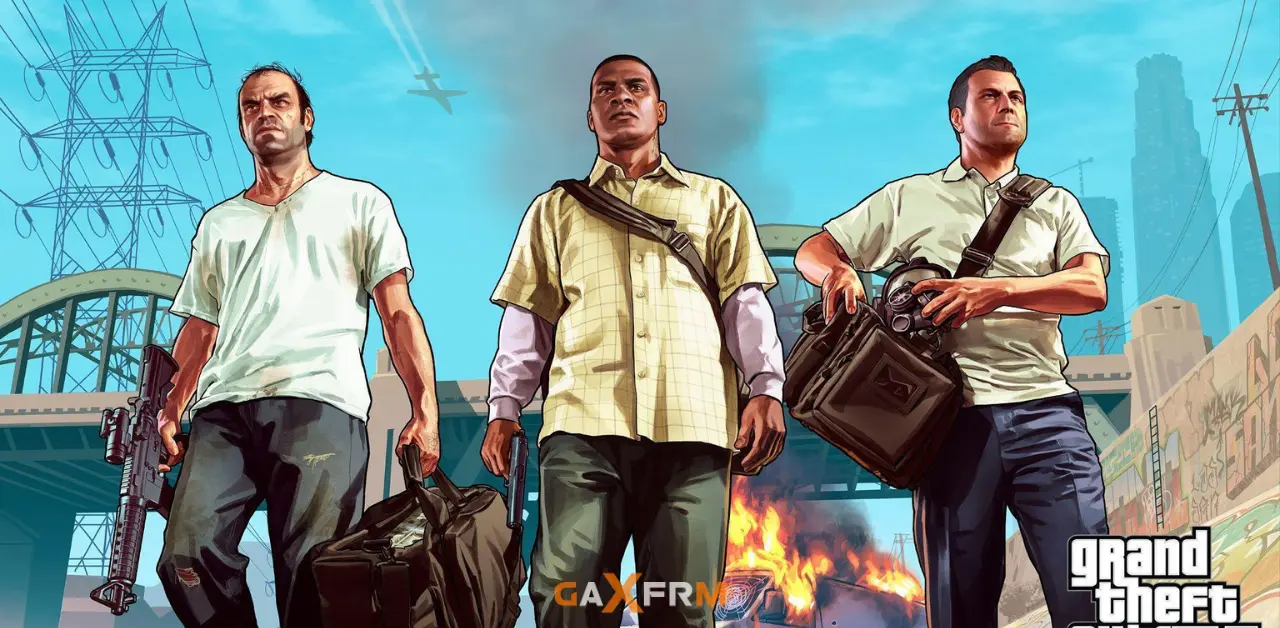
Quick Answer: ✅ GTA V runs on 4GB RAM PCs at 30-45 FPS using 720p resolution and optimized low settings. ✅ Lower texture quality, disable shadows, and reduce population density for biggest performance gains. ✅ This guide provides exact in-game settings, config tweaks, and launch options tested on 4GB RAM systems.
Key Takeaways
- ✅ GTA V works on 4GB RAM with Intel HD 4000 or newer graphics
- ✅ Resolution and shadow settings impact FPS more than any other options
- ✅ Config file edits unlock hidden performance beyond in-game menus
- ✅ Launch options and Windows tweaks add 10-20 extra FPS without lowering quality
- ✅ Story mode runs better than Online mode on weak systems
- ✅ You can achieve playable 30-40 FPS with proper optimization
Introduction
Does GTA V stutter and freeze on your 4GB RAM PC? Getting 15 FPS even on lowest settings? Can’t complete missions because of lag?
You’re not the only one struggling. GTA V needs proper optimization to run smoothly on 4GB RAM systems. The good news is that with the right GTA V best settings for 4GB RAM PC, you can achieve playable frame rates.
This complete guide shows you exactly which settings to change for maximum performance. We’ll cover in-game graphics options, advanced config tweaks, launch commands, and Windows optimization. Every setting is tested on real 4GB RAM systems with integrated graphics.
No guessing. No complicated jargon. Just clear instructions that actually work.
Let’s get GTA V running smoothly on your PC.
Understanding Your 4GB RAM System
Before changing settings, you need to know what your system can handle.
What 4GB RAM Actually Means for Gaming
Total RAM: 4GB (4096MB)
Windows uses: 1.5-2GB just running
Available for GTA V: 2-2.5GB maximum
GTA V needs: 3-3.5GB to run properly
This is tight. You must close everything else before playing.
Checking Your Graphics Card
Press Windows key + R
Type dxdiag and press Enter
Click Display tab
Look at Name field for your GPU
Intel HD 4000 or newer: GTA V will run with optimizations
Intel HD 3000 or older: Game won’t run smoothly
Dedicated GPU (GT 730 or better): Much better performance
Expected Performance on 4GB RAM
Intel HD 4000 + 4GB RAM: 25-35 FPS at 720p lowest
Intel HD 5500 + 4GB RAM: 30-40 FPS at 720p low-medium
Intel UHD 620 + 4GB RAM: 35-45 FPS at 900p normal
Dedicated GT 730 + 4GB RAM: 40-50 FPS at 1080p low
These are realistic expectations. Don’t expect 60 FPS on 4GB RAM.
Essential Pre-Game Optimization
Do these steps before even launching GTA V.
Close All Background Programs
Press Ctrl + Shift + Esc to open Task Manager
Go to Processes tab
Close these programs:
- Google Chrome or any browser
- Discord, Skype, Zoom
- Spotify or music players
- Torrent clients
- OneDrive or cloud backup
- Any game launchers except Steam or Rockstar
Each program you close frees up precious RAM.
Disable Windows Features
Press Windows + I to open Settings
Go to Privacy then Background apps
Turn off all background apps
Go to Gaming then turn off:
- Xbox Game Bar
- Game DVR
- Background recording
- Captures
These features record gameplay and eat your RAM.
Set High Performance Mode
Open Control Panel
Go to Power Options
Select High Performance plan
This stops Windows from slowing down your CPU to save power.
Update Graphics Drivers
Intel HD: Go to intel.com and download latest driver
NVIDIA: Use GeForce Experience or nvidia.com
AMD: Use AMD Software or amd.com
Old drivers cause crashes and poor performance.
Exact In-Game Graphics Settings
Launch GTA V and go to Settings then Graphics. Use these exact settings.
Display and Resolution Settings
Screen Type: Fullscreen (never windowed)
Resolution: 1280×720
Aspect Ratio: Auto
Refresh Rate: Your monitor’s rate
VSync: Off
FXAA: On
MSAA: Off
Why 720p is Critical
1280×720 has 921,600 pixels
1920×1080 has 2,073,600 pixels
That’s 2.25 times more pixels to render
Dropping to 720p can double your FPS
On laptop screens under 15 inches, 720p looks acceptable
Graphics Quality Settings
Texture Quality: Normal
Shader Quality: Normal
Shadow Quality: Normal
Reflection Quality: Low
Reflection MSAA: Off
Water Quality: Normal
Particles Quality: Normal
Grass Quality: Normal
Soft Shadows: Softer
Post FX: Normal
Motion Blur Strength: 0
Depth of Field: Off
Anisotropic Filtering: Off
Ambient Occlusion: Off
Tessellation: Off
Population and Distance Settings
Population Density: Minimum
Population Variety: Minimum
Distance Scaling: 50%
These three settings control NPCs, cars, and objects
Minimum values give you 10-15 FPS boost
You’ll see fewer pedestrians and cars but game runs smoothly
Advanced Graphics Settings
Long Shadows: Off
High Resolution Shadows: Off
High Detail Streaming While Flying: Off
Extended Distance Scaling: 0%
Extended Shadows Distance: 0%
Frame Scaling Mode: Off
All these must be off or minimum for 4GB RAM
Why These Specific Settings Work
Normal textures use acceptable VRAM without killing performance
Shadows on Normal provide some depth without huge FPS cost
Population at minimum dramatically reduces CPU and RAM usage
All advanced features off saves 15-20 FPS total
FXAA smooths edges cheaply while MSAA destroys FPS
Motion blur at 0 improves clarity and saves few frames
Advanced Configuration File Tweaks
GTA V hides powerful settings from the menu. Edit the config file for extra performance.
Finding the Settings File
Open File Explorer
Navigate to: Documents\Rockstar Games\GTA V
Find settings.xml file
Right-click and open with Notepad
Make a backup copy first
Critical Settings to Modify
Find and change these exact lines:
Lower Level of Detail Distance
<LodScale value="0.500000" />
Lower values improve FPS. Use 0.5 for balance or 0.3 for maximum FPS.
Reduce Character and Vehicle Detail
<PedLodBias value="0.000000" />
<VehicleLodBias value="0.000000" />
Set both to 0.0 for best performance on 4GB RAM.
Minimize Shadow Quality
<ShadowQuality value="1" />
Values: 0=Low, 1=Normal, 2=High, 3=Very High. Use 0 for extra FPS.
Disable Reflection Quality
<ReflectionQuality value="0" />
Set to 0 for minimal reflections. Saves GPU memory.
Turn Off High Detail Streaming
<HighDetailStreamingWhileFlying value="false" />
Prevents loading detailed textures when in aircraft.
Reduce Grass and Vegetation
<GrassQuality value="1" />
Use 0 or 1. Lower values reduce grass density significantly.
Protecting Your Settings
After editing, save the file
Right-click settings.xml
Select Properties
Check Read-only box
Click Apply then OK
This prevents GTA V from resetting your custom values
Launch Options for Better Performance
Launch options tell GTA V how to start before loading.
For Steam Version
Right-click GTA V in Steam library
Select Properties
Find Launch Options box
Add these commands:
-high -norestrictions
For Epic Games or Rockstar Launcher
Open Rockstar Games Launcher
Click Settings gear icon
Select GTA V
Find Command Line Arguments
Add same commands
What Each Command Does
-high: Sets GTA V to High priority in Windows
This gives more CPU power to the game
Your PC focuses resources on GTA V first
-norestrictions: Removes artificial memory limits
Helps on systems with exactly 4GB RAM
Allows game to use available memory better
Optional Advanced Commands
-width 1280 -height 720: Forces 720p if game ignores settings
-novblank: Reduces screen tearing when VSync is off
-fullscreen: Forces fullscreen mode
Testing Launch Options
Start game after adding commands
Press Ctrl + Shift + Esc during gameplay
Check if GTA5.exe shows High priority
If game crashes, remove options and add one at a time
Windows System Optimization
Your operating system affects GTA V performance as much as game settings.
Enable Game Mode
Press Windows + G
Click Settings gear
Turn on Game Mode
This prioritizes games over background tasks
Free Up RAM Before Playing
Close all browser tabs
Exit Discord and chat programs
Stop Windows Update temporarily
Disable antivirus real-time scan while playing
Check Task Manager and end unnecessary processes
Every megabyte of RAM matters with only 4GB
Adjust Virtual Memory
Right-click This PC and select Properties
Click Advanced system settings
Under Performance click Settings
Go to Advanced tab then Change under Virtual memory
Uncheck Automatically manage
Select Custom size
Set Initial size: 4096 MB
Set Maximum size: 8192 MB
Click Set then OK
This uses hard drive space as extra RAM
Clean Temporary Files
Press Windows + R
Type %temp% and press Enter
Select all files with Ctrl + A
Delete everything
Empty Recycle Bin
This frees disk space and small amount of RAM
Disable Startup Programs
Press Ctrl + Shift + Esc
Go to Startup tab
Disable programs you don’t need at startup
This keeps more RAM available for GTA V
Resolution and Visual Quality Balance
Resolution has the biggest impact on performance. Here’s how to optimize it.
Why Resolution Matters Most
Lower resolution means fewer pixels to render
Each pixel needs GPU processing power
720p uses 60% fewer pixels than 1080p
This can literally double your FPS
On 4GB RAM, resolution is your main FPS lever
Resolution Options for 4GB RAM
1280×720: Best for Intel HD 4000-5500
800×600: Extreme option for very weak systems
1024×768: Classic 4:3 if you don’t mind black bars
1366×768: Common laptop native resolution
1600×900: Only if you have GT 730 or better
Testing Different Resolutions
Start at 720p with all settings from this guide
Check FPS in story mode
If under 30 FPS, try 800×600
If getting 40+ FPS, try 900p
Find your sweet spot between performance and clarity
Visual Quality vs Performance
You can’t have both on 4GB RAM
Prioritize smooth gameplay over graphics
30 FPS at 720p beats 20 FPS at 1080p
Choppy gameplay at high settings isn’t fun
Smooth gameplay at low settings is enjoyable
Monitoring and Testing Your Settings
You need to see your actual FPS to know if settings work.
Enable FPS Counter
Steam version: Settings – In-Game – FPS Counter
Enable and choose corner
For Rockstar Launcher: Use MSI Afterburner
Using MSI Afterburner
Download MSI Afterburner free
Install with RivaTuner Statistics Server
Open MSI Afterburner
Click Settings
Go to Monitoring tab
Enable:
- Framerate
- GPU usage
- CPU usage
- RAM usage
- Temperatures
Check Show in On-Screen Display
This shows real-time performance data
Understanding the Numbers
FPS: Your frames per second
GPU usage 95-100%: GPU bottleneck, lower graphics
CPU usage 95-100%: CPU bottleneck, lower population
RAM usage near 4000MB: Memory bottleneck, close apps
Temperature over 85°C: Overheating, clean fans
Target Frame Rates
Story Mode: 30+ FPS comfortable
Online Mode: 35+ FPS minimum
Driving: 30 FPS acceptable
Gunfights: 35+ FPS for better aiming
These are realistic targets for 4GB RAM
Story Mode vs Online Mode Performance
Online mode needs more resources than story mode.
Story Mode Performance
Generally 10-15 FPS better than Online
No network synchronization overhead
Can pause anytime to adjust settings
Easier to maintain stable FPS
Better for testing your optimal settings
Online Mode Performance
Requires CPU for network processing
Other players and vehicles increase load
Can’t pause to safely change settings
Needs stable 35+ FPS minimum
More demanding on 4GB RAM systems
Optimizing for Online Mode
Use even lower settings than story mode
Population Density: Absolute minimum
Distance Scaling: 25-40%
Consider 720p even if story mode handles 900p
Close Discord and use phone for voice chat
Use wired ethernet instead of WiFi
Lower your expectations for Online on 4GB RAM
Common Problems and Solutions
Here are fixes for typical issues on 4GB RAM systems.
Game Crashes on Startup
Cause: Insufficient RAM or corrupted files
Solution: Close everything before launching. Verify game files in Steam or Rockstar Launcher. Update graphics drivers.
Constant Stuttering
Cause: RAM overflow or background programs
Solution: Set Texture Quality to Normal not High. Close all browsers and apps. Increase virtual memory to 8GB.
Low FPS in Specific Areas
Cause: Population density or streaming
Solution: Lower Population Density to minimum. Reduce Distance Scaling to 25%. Disable High Detail Streaming.
Freezing When Driving Fast
Cause: Texture streaming on slow hard drive
Solution: Lower Texture Quality. Install on SSD if possible. Reduce LOD scale in config file.
Can’t Reach 30 FPS
Cause: Settings too high or overheating
Solution: Use 720p resolution. Set all graphics to minimum. Check temperatures and clean laptop vents.
Online Mode Unplayable
Cause: Network and additional players
Solution: This is normal on 4GB RAM. Use lowest settings. Consider upgrading RAM for Online play.
When Settings Aren’t Enough
Sometimes optimization only goes so far.
Signs You Need Hardware Upgrade
Consistent 20 FPS or below at 720p minimum
Frequent crashes despite all optimizations
Unbearable input lag even at 30 FPS
Can’t complete missions due to freezing
Online mode completely unplayable
Most Cost-Effective Upgrade
4GB to 8GB RAM: Biggest improvement
This single upgrade adds 15-25 FPS
Costs 20-40 dollars for laptop RAM
Easiest upgrade you can do yourself
Transforms GTA V from barely playable to smooth
Why RAM Matters Most
GTA V constantly loads textures and objects
4GB RAM forces constant swapping to disk
This causes stuttering and freezing
8GB RAM eliminates most stuttering
Game runs in actual RAM instead of virtual memory
Alternative to Upgrading
Play story mode only at 720p low settings
Accept 25-30 FPS as playable
Take breaks if game frustrates you
Save money for better PC or console
Not everyone needs perfect performance to enjoy game
Frequently Asked Questions
Q: Can GTA V run on 4GB RAM PC?
A: Yes, GTA V runs on 4GB RAM at 720p resolution with low settings. Expect 25-35 FPS depending on your CPU and GPU. Close all background programs and use the exact settings from this guide for best results.
Q: What are the best GTA V settings for 4GB RAM?
A: Use 720p resolution, all graphics on Normal or Low, shadows on Normal, population density at minimum, and all advanced options turned off. This gives you 30-40 FPS on most 4GB RAM systems with integrated graphics.
Q: Should I play GTA V story mode or online on 4GB RAM?
A: Story mode runs much better on 4GB RAM. Online mode needs more resources for network sync and other players. If you must play Online, use even lower settings and expect 5-10 FPS less than story mode.
Q: How do I stop GTA V from crashing on 4GB RAM?
A: Close all background applications before launching. Set virtual memory to 8GB. Update graphics drivers. Verify game files. Lower Texture Quality to Normal. If still crashing, your system may need RAM upgrade.
Q: What resolution should I use for GTA V on 4GB RAM?
A: Use 1280×720 (720p) for best balance of performance and visuals. Very weak systems can try 800×600. Don’t use 1080p on 4GB RAM as it will cause severe stuttering.
Q: Can Intel HD graphics run GTA V?
A: Intel HD 4000 or newer can run GTA V at 720p low settings getting 25-35 FPS. Intel HD 5500 or UHD 620 run it better at 30-45 FPS. Intel HD 3000 or older won’t run the game playably.
Q: Why does GTA V lag even on lowest settings?
A: Main causes are background programs using RAM, thermal throttling from overheating, outdated drivers, or resolution set too high. Close everything, clean laptop vents, update drivers, and use 720p.
Q: Is 30 FPS playable for GTA V?
A: Yes, 30 FPS is playable for GTA V story mode. It’s not ideal for competitive Online play but perfectly fine for single-player missions and exploration. Many console players played at 30 FPS.
Final Thoughts
GTA V runs on 4GB RAM systems with proper optimization. You won’t get ultra settings at 4K, but you can achieve smooth 30-40 FPS gameplay at 720p.
The key is understanding which settings matter most. Resolution, shadows, and population density are your main performance levers. Config file tweaks and launch options add extra FPS beyond menu settings.
With these GTA V best settings for 4GB RAM PC, you can enjoy Los Santos without expensive upgrades. Story mode works well on 4GB RAM. Online mode is playable but challenging.
Remember that 30 FPS is acceptable. Not everyone needs 60 FPS to have fun. Sometimes smooth 720p gameplay beats choppy 1080p.
If you still struggle after applying all settings, consider upgrading to 8GB RAM. This single upgrade transforms performance more than any setting change.
What’s Your Experience?
What FPS are you getting with these settings? Did the config tweaks help your performance?
Share your PC specs and results in the comments below. Let other 4GB RAM players know what worked for you.
Try these settings today and see how much better GTA V runs on your system. Bookmark this guide to reference whenever you need to optimize performance.
Happy gaming in Los Santos on your 4GB RAM PC!
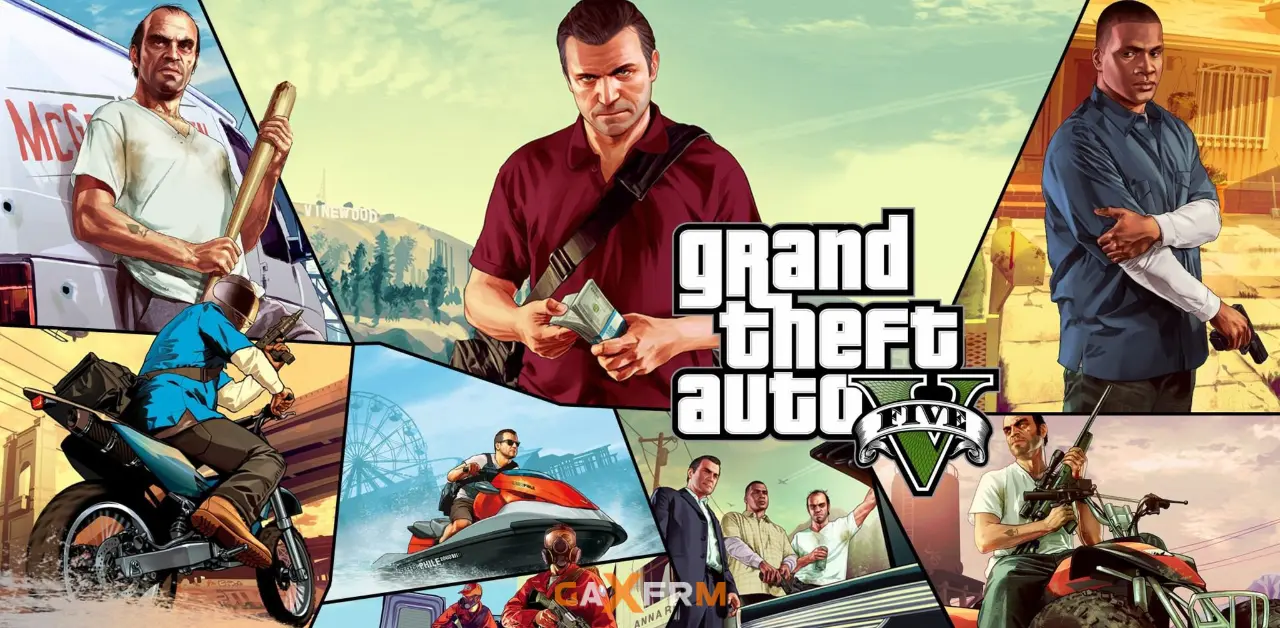
Quick Answer: ✅ You can enter GTA V cheat codes on PC using the keyboard (press ~ to open console) or by dialing numbers on your in-game phone. ✅ All cheats work in Story Mode but will disable achievements and trophies. ✅ Never use cheats in GTA Online — you will get banned instantly.
Key Takeaways
- ✅ Over 40 working GTA V cheat codes for PC in 2024
- ✅ Easy keyboard and phone methods to activate cheats
- ✅ Cheats for invincibility, weapons, cars, money, and more
- ✅ Most cheats run smoothly on low-end PCs
- ✅ Some cheats like spawning many cars can cause lag on weak laptops
- ✅ All cheats only work in Story Mode, not GTA Online
Introduction
Want to have infinite health, spawn supercars, or get all weapons instantly in GTA 5?
You’re in the right place.
GTA V cheat codes on PC are super easy to use and still work perfectly in 2024. Whether you play on a powerful gaming PC or a low-end laptop, these cheats let you have fun in Story Mode without grinding.
In this complete guide, you’ll find every working GTA V cheat codes PC list, how to enter them, and tips to avoid lag on weak systems. We’ll also show you the best cheats for beginners and low-end PCs.
Let’s get started!
How to Enter GTA V Cheat Codes on PC
There are two simple ways:
Method 1: Keyboard (Fastest)
Press the ~ key (left of 1 key) to open the console.
Type the cheat code and press Enter.
Method 2: In-Game Phone
Open your phone with Up Arrow.
Go to Dial and type the phone number.
Both methods work the same. Use whichever feels easier.
Important Rules
- Cheats only work in Story Mode
- Using cheats disables achievements
- Save your game before using cheats
- Never use cheats in GTA Online
All GTA V Cheat Codes PC (Complete List)
Here is the full updated list of GTA V cheat codes for PC.
Player Cheats
| Cheat | Keyboard Code | Phone Number | Effect |
|---|---|---|---|
| Invincibility | PAINKILLER | 1-999-724-654-5537 | God Mode (5 minutes) |
| Max Health & Armor | TURTLE | 1-999-887-853 | Full health and armor |
| Raise Wanted Level | FUGITIVE | 1-999-3844-8483 | Increase wanted level |
| Lower Wanted Level | LAWYERUP | 1-999-5299-3787 | Clear wanted level |
| Recharge Ability | POWERUP | 1-999-769-3787 | Refill special ability |
| Slow Motion | SLOWMO | 1-999-756-966 | Slow motion (3 levels) |
| Drunk Mode | LIQUOR | 1-999-547-861 | Drunk camera effect |
Weapon & Combat Cheats
| Cheat | Keyboard Code | Phone Number | Effect |
|---|---|---|---|
| Weapons | TOOLUP | 1-999-866-587 | All weapons + ammo |
| Infinite Ammo | Not available | ||
| Explosive Melee | HOTHANDS | 1-999-4684-2637 | Explosive punches |
| Explosive Bullets | HIGHEX | 1-999-444-439 | Explosive ammo |
| Flaming Bullets | INCENDIARY | 1-999-462-363-4279 | Fire ammo |
| Aimbot (Slow Aim) | DEAD-EYE | 1-999-332-3393 | Slow-motion aiming |
Vehicle Cheats
| Cheat | Keyboard Code | Phone Number | Effect |
|---|---|---|---|
| Spawn Buzzard | BUZZOFF | 1-999-289-9633 | Attack helicopter |
| Spawn Comet | COMET | 1-999-266-38 | Sports car |
| Spawn Sanchez | OFFROAD | 1-999-633-7623 | Dirt bike |
| Spawn Trashmaster | TRASHED | 1-999-872-7433 | Garbage truck |
| Spawn Limo | VINEWOOD | 1-999-846-3963 | Limousine |
| Spawn BMX | BANDIT | 1-999-226-348 | BMX bike |
| Spawn PCJ | ROCKET | 1-999-762-538 | Motorcycle |
| Spawn Rapid GT | RAPIDGT | 1-999-727-4348 | Sports car |
| Spawn Duke O’Death | DEATHCAR | 1-999-332-84227 | Muscle car |
| Spawn Kraken Sub | BUBBLES | 1-999-282-2537 | Submarine |
World & Fun Cheats
| Cheat | Keyboard Code | Phone Number | Effect |
|---|---|---|---|
| Change Weather | MAKEITRAIN | 1-999-625-348-7246 | Cycle weather |
| Moon Gravity | FLOATER | 1-999-356-2837 | Low gravity |
| Skyfall | SKYFALL | 1-999-759-3255 | Spawn high in sky |
| Slippery Cars | SNOWDAY | 1-999-766-9329 | Sliding cars |
| Fast Run | CATCHME | 1-999-228-8463 | Faster sprint |
| Fast Swim | GOTGILLS | 1-999-468-44557 | Faster swimming |
Special Cheats
| Cheat | Keyboard Code | Phone Number | Effect |
|---|---|---|---|
| Director Mode | JRTALENT | 1-999-578-25368 | Director Mode |
| Black Cellphones | 1-999-367-3767 | Explode all phones | |
| Parachute | SKYDIVE | 1-999-759-3483 | Give parachute |
Best GTA V Cheat Codes for Low-End PCs
Some cheats work better than others on weak laptops.
Recommended for Low-End PCs:
- PAINKILLER (Invincibility) – Very safe, no lag
- TURTLE (Max Health/Armor) – No performance impact
- LAWYERUP (Clear Wanted Level) – Helps when police chase causes lag
- TOOLUP (All Weapons) – No lag
- COMET or RAPIDGT (Sports cars) – Light vehicles, low lag
Cheats to Use Carefully:
- Spawning many helicopters or big trucks can cause stuttering on 4GB RAM systems
- Moon Gravity and Skyfall can cause physics lag on very weak PCs
- Weather change is safe but can slightly reduce FPS temporarily
Pro Tip for Low-End PCs
Spawn only one vehicle at a time. Too many spawned cars can drop your FPS heavily.
How to Use Cheats Without Lag on Low-End PCs
- Save your game first
- Close all background programs (Chrome, Discord, etc.)
- Use keyboard method instead of phone (faster)
- Spawn vehicles one by one
- Use LAWYERUP often to remove police (they cause lag)
- Restart the game after using many cheats
Warnings About GTA V Cheat Codes
- Cheats permanently disable achievements in that save file
- You cannot earn 100% completion if you use cheats
- Cheats do not work in GTA Online (you will get banned)
- Some cheats like Skyfall can make you fall forever if not careful
- Always save before trying new cheats
Frequently Asked Questions
Q: Do GTA V cheat codes still work in 2024?
A: Yes, all the codes above are tested and working in the latest version of GTA V.
Q: Can I use GTA V cheat codes on low-end PCs?
A: Yes. Most cheats work perfectly on 4GB RAM laptops. Just avoid spawning too many heavy vehicles at once.
Q: How do I open the cheat console on PC?
A: Press the ~ key (the key below Esc). Type the code and press Enter.
Q: Will using cheats get me banned in GTA Online?
A: Yes. Never use any cheats in Online mode. Rockstar bans accounts instantly.
Q: Can I use cheats after completing the story?
A: Yes. You can use cheats anytime in Story Mode, even after finishing the game.
Q: Which is the best cheat for beginners?
A: Start with TOOLUP (all weapons) and TURTLE (full health). These are safe and fun.
Q: Do cheats affect game performance on weak laptops?
A: Most cheats don’t affect FPS. However, spawning many cars or using Moon Gravity can cause temporary lag on low-end PCs.
Q: How do I turn off a cheat?
A: Most cheats last for 5 minutes or until you die. Re-enter the same code to toggle some effects off.
Final Thoughts
GTA V cheat codes on PC are a great way to have fun and relax in Los Santos without grinding. Whether you want to fly around in a helicopter, blow things up, or just drive cool cars, these codes make everything easy.
Remember to use them only in Story Mode and always save your game first. On low-end PCs, stick to simple cheats like invincibility and weapons to avoid lag.
Now go enjoy GTA 5 the fun way!
What’s Your Favorite Cheat?
Which GTA V cheat code are you going to try first?
Tell me your PC specs and which cheat worked best for you in the comments!
Share this guide with your friends who play GTA 5 on low-end PCs.
Need more help with GTA 5 on weak laptops? Check out our other guides on GameXFrame.
Happy cheating and have fun in Los Santos!
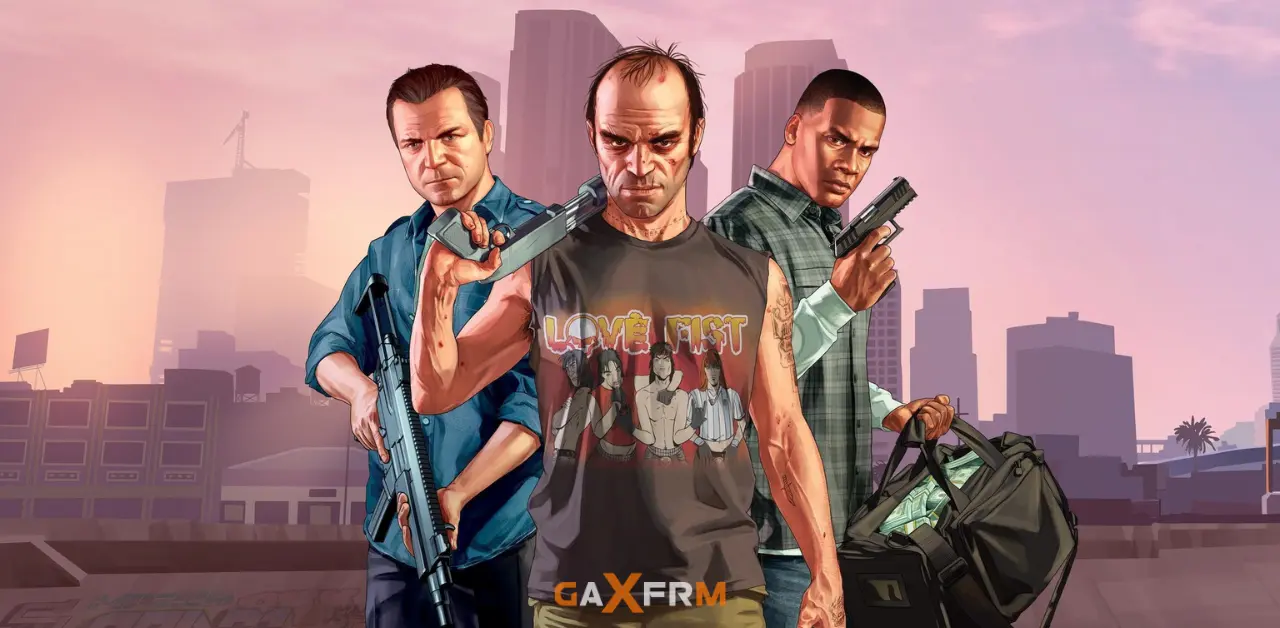
Quick Answer: ✅ GTA 5 optimized settings balance visuals and performance by using Normal textures, Low shadows, and 1080p resolution. ✅ You can achieve 60+ FPS on mid-range PCs and 40-60 FPS on low-end systems with the right configuration. ✅ This guide provides three preset configurations: Low-End, Balanced, and High-Performance for different hardware levels.
Key Takeaways
- ✅ Optimized settings deliver 50-100 percent better FPS than default high settings
- ✅ Disabling shadows and reflections provides the biggest performance boost without ruining visuals
- ✅ Three different preset configurations work for 4GB, 6GB, and 8GB RAM systems
- ✅ Advanced tweaks in config files unlock hidden performance not available in menus
- ✅ Launch options and Windows optimization add another 10-20 FPS without lowering quality
- ✅ You can keep the game looking great while hitting stable 60 FPS on most systems
Introduction
Does GTA 5 run poorly even though your PC seems powerful enough? Are you getting 30-40 FPS when you expected 60?
Default GTA 5 settings prioritize graphics over performance. Rockstar assumes you have high-end hardware. But most players don’t own RTX 4090s or i9 processors. We have mid-range systems that need smart optimization.
The good news is that GTA 5 can look amazing and run smoothly at the same time. You just need to know which settings actually matter and which ones waste FPS for barely noticeable visual improvements.
This guide shows you the exact GTA 5 optimized settings that deliver the perfect balance between graphics quality and frame rate. We’ll cover three different configurations based on your hardware, plus advanced tweaks and Windows optimization.
By the end, you’ll enjoy beautiful Los Santos at smooth 60 FPS or higher.
Understanding GTA 5 Graphics Settings Impact
Not all graphics settings affect performance equally. Some destroy FPS for minimal visual improvement. Others barely impact performance but look amazing.
Here’s what actually matters.
High Impact Settings (Change These First)
MSAA – Multi-sample anti-aliasing kills FPS. Each level cuts performance by 20-30 percent.
Shadow Quality – Shadows eat GPU resources. High shadows can cost 15-25 FPS compared to Normal.
Reflection MSAA – Anti-aliasing on reflections is extremely expensive. Always turn this off.
Population Density – More NPCs and cars mean more processing. Medium vs Very High makes a huge difference.
Distance Scaling – Controls how far you see objects. Extended distances tank FPS in open areas.
Medium Impact Settings
Texture Quality – Affects VRAM usage more than FPS. Normal vs Very High makes 5-10 FPS difference.
Grass Quality – High grass quality drops FPS in countryside areas by 10-15 frames.
Post FX – Post-processing effects like motion blur and depth of field. Medium impact of 5-10 FPS.
Water Quality – Affects performance near oceans and rivers. Difference of 5-8 FPS between settings.
Low Impact Settings (Keep These Higher)
Anisotropic Filtering – Minimal FPS cost but makes textures much sharper. Keep at x4 or x8.
Shader Quality – Moderate visual improvement with only 3-5 FPS cost.
Particle Quality – Explosions and smoke effects. Small performance impact of 2-4 FPS.
The Smart Approach
Lower high-impact settings aggressively. Keep medium-impact settings at Normal. Maximize low-impact settings for better visuals.
This strategy gives you great-looking graphics at much higher FPS.
Preset 1 – Low-End PC Optimized Settings (4GB RAM)
Use these settings if you have 4GB RAM, Intel HD Graphics, or older dual-core processors.
Target FPS: 30-45
Target Resolution: 1280×720 or 1600×900
Display Settings
Screen Type: Fullscreen
Resolution: 1280×720
Aspect Ratio: Auto
Refresh Rate: Match monitor
Output Monitor: 1
Graphics Settings
FXAA: On
MSAA: Off
VSync: Off
Population Density: Low (25-30 percent)
Population Variety: Low (25-30 percent)
Distance Scaling: Medium (50 percent)
Quality Settings
Texture Quality: Normal
Shader Quality: Normal
Shadow Quality: Normal
Reflection Quality: Low
Reflection MSAA: Off
Water Quality: Normal
Particles Quality: Normal
Grass Quality: Normal
Soft Shadows: Softer
Advanced Graphics
Long Shadows: Off
High Resolution Shadows: Off
High Detail Streaming While Flying: Off
Extended Distance Scaling: 0 percent
Extended Shadows Distance: 0 percent
Post-Processing
Post FX: Normal
Motion Blur Strength: 0 percent
In-Game Depth of Field: Off
Anisotropic Filtering: x4
Ambient Occlusion: Off
Tessellation: Off
Why This Works
These settings keep visuals acceptable while prioritizing frame rate. You get stable 30-40 FPS in most situations.
FXAA is on because it’s cheap and removes jagged edges. MSAA stays off because it destroys FPS.
Normal textures and shaders keep the game looking decent. Shadows at Normal provide depth without killing performance.
720p resolution is the key. It reduces rendering load significantly while remaining playable on small screens.
Preset 2 – Balanced Mid-Range Settings (6-8GB RAM)
Use these settings if you have 6-8GB RAM, GTX 1050/1650 level GPU, or Intel i3/i5 processor.
Target FPS: 50-70
Target Resolution: 1920×1080
Display Settings
Screen Type: Fullscreen
Resolution: 1920×1080
Aspect Ratio: Auto
Refresh Rate: Match monitor
Output Monitor: 1
Graphics Settings
FXAA: On
MSAA: Off or x2 (if you have 8GB RAM)
VSync: Off
Population Density: Medium (50-60 percent)
Population Variety: Medium (50-60 percent)
Distance Scaling: High (75 percent)
Quality Settings
Texture Quality: High
Shader Quality: High
Shadow Quality: High
Reflection Quality: Normal
Reflection MSAA: Off
Water Quality: High
Particles Quality: Normal
Grass Quality: Normal
Soft Shadows: Softer
Advanced Graphics
Long Shadows: Off
High Resolution Shadows: Off
High Detail Streaming While Flying: On
Extended Distance Scaling: 25 percent
Extended Shadows Distance: 0 percent
Post-Processing
Post FX: High
Motion Blur Strength: 0 percent (personal preference – some like 30-50 percent)
In-Game Depth of Field: On
Anisotropic Filtering: x8
Ambient Occlusion: Off
Tessellation: Off
Why This Works
These settings deliver excellent visuals at 1080p while maintaining 60 FPS in most situations.
High textures and shaders make the game look modern. Shadows at High add depth to scenes.
Reflection MSAA stays off because it’s still too expensive. Regular reflections at Normal look fine.
Distance Scaling at 75 percent shows plenty of detail without overloading your GPU.
This is the sweet spot for most gaming PCs built in the last 5 years.
Preset 3 – High-Performance Settings (8GB+ RAM, Dedicated GPU)
Use these settings if you have 8GB+ RAM, GTX 1660/RX 580 or better GPU, and i5/Ryzen 5 or better CPU.
Target FPS: 80-120
Target Resolution: 1920×1080 or 2560×1440
Display Settings
Screen Type: Fullscreen
Resolution: 1920×1080 (or 1440p if you have strong GPU)
Aspect Ratio: Auto
Refresh Rate: Match monitor
Output Monitor: 1
Graphics Settings
FXAA: On
MSAA: x2 or x4
VSync: Off (use FPS limiter at 144 if needed)
Population Density: High (75 percent)
Population Variety: High (75 percent)
Distance Scaling: Maximum
Quality Settings
Texture Quality: Very High
Shader Quality: Very High
Shadow Quality: Very High
Reflection Quality: Very High
Reflection MSAA: Off
Water Quality: Very High
Particles Quality: Very High
Grass Quality: High
Soft Shadows: Sharpest
Advanced Graphics
Long Shadows: On
High Resolution Shadows: On
High Detail Streaming While Flying: On
Extended Distance Scaling: 50-75 percent
Extended Shadows Distance: 25 percent
Post-Processing
Post FX: Very High
Motion Blur Strength: Personal preference (0-50 percent)
In-Game Depth of Field: On
Anisotropic Filtering: x16
Ambient Occlusion: High
Tessellation: Very High
Why This Works
These settings maximize visual quality while still maintaining high frame rates on capable hardware.
Very High textures and shaders make Los Santos look stunning. All quality settings maxed deliver next-gen visuals.
Reflection MSAA still stays off because even high-end GPUs struggle with it. The visual improvement isn’t worth the 20-30 FPS loss.
You’ll get 80-100+ FPS in most areas with these settings on mid to high-end gaming PCs.
Advanced Configuration File Tweaks
GTA 5 hides some settings from the in-game menu. You can edit the config file directly for extra optimization.
Finding the Settings File
Navigate to: Documents\Rockstar Games\GTA V\settings.xml
Right-click and open with Notepad or Notepad++.
Critical Settings to Adjust
Look for these lines and modify the values.
For Better Performance
<LodScale value="0.500000" />
Controls level of detail distance. Lower values improve FPS. Range 0.0 to 1.0. Try 0.5 for balanced performance.
<PedLodBias value="0.000000" />
<VehicleLodBias value="0.000000" />
Reduces quality of distant pedestrians and vehicles. Set to 0.0 for best performance.
<ShadowQuality value="2" />
0 = Low, 1 = Normal, 2 = High, 3 = Very High. Use 1 for best balance.
<ReflectionQuality value="1" />
0 = Low, 1 = Normal, 2 = High, 3 = Very High. Keep at 0 or 1 even on good hardware.
For Better Visuals Without FPS Loss
<AnisotropicFiltering value="8" />
Use 8 or 16. Minimal FPS cost but sharper textures.
<WaterQuality value="2" />
Water looks much better at High (2) with small performance cost.
<ShaderQuality value="2" />
High shaders (2) improve lighting with reasonable performance impact.
Save and Protect Your Settings
After editing, save the file.
Right-click settings.xml, select Properties, check Read-only, click Apply.
This prevents GTA 5 from overwriting your custom values.
Launch Options for Maximum Performance
Launch options tell GTA 5 how to start and what resources to use.
For Steam Version
Right-click GTA 5 in your Steam library.
Select Properties.
In the Launch Options field, add:
-high -norestrictions
For Rockstar Launcher Version
Open Rockstar Games Launcher.
Click Settings (gear icon).
Select GTA V from the game list.
Find Command Line Arguments.
Add the same launch options.
What Each Command Does
-high: Sets process priority to High. Windows gives GTA 5 more CPU resources.
-norestrictions: Removes some artificial memory and CPU limitations.
Optional Launch Options
-novblank: Can help with screen tearing if VSync is off.
-fullscreen: Forces fullscreen mode (usually automatic anyway).
-width 1920 -height 1080: Forces specific resolution. Replace numbers with your preferred resolution.
Test After Adding
Launch the game and check performance. If it crashes or runs worse, remove the launch options.
Most systems benefit from -high and -norestrictions with no issues.
Windows Optimization for GTA 5
Your operating system settings affect game performance significantly.
Enable Windows Game Mode
Press Windows + G to open Xbox Game Bar.
Click Settings (gear icon).
Turn on Game Mode.
This prioritizes system resources for games and reduces background activity.
Disable Unnecessary Startup Programs
Press Ctrl + Shift + Esc to open Task Manager.
Go to Startup tab.
Disable programs you don’t need at startup: Spotify, Discord, Adobe updaters, etc.
Fewer startup programs mean more available RAM for GTA 5.
Set Power Plan to High Performance
Open Control Panel.
Go to Hardware and Sound, then Power Options.
Select High Performance plan.
This prevents Windows from throttling your CPU to save power.
Update Graphics Drivers
Outdated drivers cause crashes and poor performance.
For NVIDIA: Use GeForce Experience or download from nvidia.com
For AMD: Use AMD Software or download from amd.com
For Intel: Download from intel.com support page
Always use the latest stable driver version.
Disable Xbox Game DVR
Press Windows + I to open Settings.
Go to Gaming.
Turn off Game DVR, Background Recording, and Captures.
These features record gameplay in the background and reduce FPS by 5-15 frames.
Clean Up Disk Space
GTA 5 runs better with free disk space available.
Press Windows + R, type %temp%, press Enter.
Select all files (Ctrl + A) and delete.
Empty Recycle Bin.
Run Disk Cleanup (search in Start menu) and clean system files.
Disable Fullscreen Optimizations
Navigate to your GTA 5 installation folder.
Right-click GTA5.exe (or PlayGTAV.exe).
Select Properties.
Go to Compatibility tab.
Check Disable fullscreen optimizations.
Click Apply.
This can fix stuttering and input lag issues.
Monitor Your Performance
You can’t optimize what you don’t measure. Monitor FPS and system stats while playing.
Enable Steam FPS Counter
Open Steam.
Go to Settings, then In-Game tab.
Enable In-Game FPS Counter.
Choose a corner for display.
Simple but limited. Only shows FPS.
Use MSI Afterburner (Recommended)
Download MSI Afterburner and RivaTuner Statistics Server (bundled together).
Install both programs.
Open MSI Afterburner.
Click Settings, then Monitoring tab.
Enable on-screen display for:
- Framerate
- GPU usage
- GPU temperature
- CPU usage
- CPU temperature
- RAM usage
This shows exactly what’s bottlenecking your performance.
Understanding the Data
If GPU usage is 95-100 percent: GPU bottleneck. Lower graphics settings.
If CPU usage is 95-100 percent: CPU bottleneck. Lower population density and distance scaling.
If RAM usage is near your maximum: RAM bottleneck. Close background apps or upgrade RAM.
High temperatures (85°C+): Thermal throttling. Clean fans and improve cooling.
Target Frame Rates
Story Mode: 45-60 FPS comfortable
GTA Online: 60+ FPS recommended
Competitive/Racing: 75+ FPS ideal
High Refresh Monitors: Match your refresh rate (144 FPS for 144Hz)
Find settings that keep you in your target range consistently.
Troubleshooting Common Issues
Stuttering Every Few Seconds
Causes: VSync issues, VRAM overflow, background apps
Solutions:
- Disable VSync in game and use FPS limiter instead
- Lower Texture Quality if VRAM usage exceeds your GPU’s memory
- Close Chrome, Discord, and other memory-heavy apps
- Disable Windows Game DVR
Low FPS in Specific Areas
Causes: Population density, grass rendering, object count
Solutions:
- Lower Population Density to 50 percent or less
- Reduce Grass Quality to Normal
- Lower Distance Scaling in dense areas like downtown
- Use custom config tweaks to reduce LOD
Game Crashes on Startup
Causes: Corrupted files, driver conflicts, insufficient VRAM
Solutions:
- Verify game files through Steam or Rockstar Launcher
- Update graphics drivers to latest version
- Lower Texture Quality to Normal
- Remove launch options and try again
Screen Tearing Without VSync
Causes: FPS exceeds monitor refresh rate, no frame sync
Solutions:
- Enable VSync if FPS is stable above 60
- Use NVIDIA Control Panel or AMD Radeon Settings to enable Adaptive VSync
- Cap FPS at your monitor’s refresh rate using RivaTuner
- Consider FreeSync/G-Sync if your monitor supports it
Blurry Graphics After Optimization
Causes: Low resolution, Frame Scaling mode enabled, low Anisotropic Filtering
Solutions:
- Increase resolution to native monitor resolution if possible
- Disable Frame Scaling Mode completely
- Set Anisotropic Filtering to x8 or x16
- Enable FXAA for edge smoothing
Input Lag or Delayed Controls
Causes: VSync, framerate cap, fullscreen optimizations
Solutions:
- Disable VSync
- Disable fullscreen optimizations on GTA5.exe
- Set Maximum Pre-Rendered Frames to 1 in NVIDIA Control Panel
- Use exclusive fullscreen mode, not borderless window
Benchmark Your Settings
After applying optimizations, test them properly across different scenarios.
Story Mode Test
Load Story Mode and visit these locations:
Downtown Los Santos: Drive through busy streets. Check FPS in traffic.
Vinewood Hills: Test in open areas with grass and foliage.
Highway: Drive at high speed. Check for stuttering.
Sandy Shores: Desert area with different rendering demands.
If FPS stays above your target in all areas, settings are good.
Online Mode Test
GTA Online is more demanding than Story Mode.
Join a public session.
Participate in:
- Freemode with 20+ players
- Contact missions
- Heists with multiple players
- Races with 15+ players
If performance drops below 45 FPS consistently, lower settings slightly.
Long Session Test
Play for 1-2 hours continuously.
Watch for:
- FPS degradation over time (memory leak)
- Increasing temperatures
- Crashes after extended play
Restart game every 2-3 hours to clear memory if needed.
Best Settings for Different Hardware Tiers
Entry Level (Intel HD 4000, 4GB RAM)
Resolution: 720p
Preset: Low-End configuration
Expected FPS: 25-35
Best for: Story Mode only
Budget Gaming (GTX 1050 Ti, 8GB RAM)
Resolution: 1080p
Preset: Balanced configuration
Expected FPS: 50-70
Best for: Story and Online
Mid-Range (GTX 1660/RX 5600, 16GB RAM)
Resolution: 1080p
Preset: High-Performance with some tweaks
Expected FPS: 80-110
Best for: Competitive Online
High-End (RTX 3060/RX 6700, 16GB+ RAM)
Resolution: 1440p
Preset: High-Performance maxed
Expected FPS: 90-130
Best for: Maximum graphics at high FPS
Ultra (RTX 4070+, 32GB RAM)
Resolution: 4K
Preset: Everything maxed including Reflection MSAA
Expected FPS: 60-90
Best for: Screenshot quality visuals
Match your settings to your hardware tier for best results.
Seasonal and Situational Settings Adjustments
For Story Mode
You can increase graphics settings slightly since no network lag exists.
Population Density: Can go higher without online sync issues
Post FX: Increase for better cinematics
Grass Quality: Increase for beautiful countryside drives
For GTA Online
Prioritize performance and reduce input lag.
Population Density: Keep lower to reduce network load
VSync: Always off for better response time
Distance Scaling: Medium to reduce rendering distant players
For Racing
Smooth FPS is critical for competitive racing.
Motion Blur: Off for clarity
Shadow Quality: Lower to maintain FPS in tunnels
Population: Low to reduce traffic interference
Distance Scaling: Medium to see track ahead
For Photo Mode / Content Creation
When taking screenshots or recording video.
Increase all settings temporarily
Enable motion blur for cinematic look
Max out Anisotropic Filtering
Use 4K or 1440p resolution
Remember to lower back for regular gameplay
Frequently Asked Questions
Q: What are the absolute best GTA 5 optimized settings for 60 FPS?
A: Use Preset 2 from this guide: 1080p, MSAA off, High textures and shadows, Normal reflections and grass. This delivers consistent 60+ FPS on most mid-range PCs while keeping visuals excellent.
Q: Should I use VSync for GTA 5?
A: Only if you have stable FPS above your monitor’s refresh rate and experience screen tearing. Otherwise keep it off. VSync adds input lag which hurts gameplay feel, especially in Online mode.
Q: What graphics setting has the biggest FPS impact?
A: MSAA anti-aliasing. Each MSAA level (x2, x4, x8) cuts FPS by 20-30 percent. Turn it off or use FXAA instead for much better performance with acceptable edge smoothing.
Q: Can I run GTA 5 at 1080p on 4GB RAM?
A: Yes but not recommended. Lower texture quality to Normal, keep MSAA off, and expect 30-40 FPS. Upgrading to 8GB RAM makes a massive difference for 1080p gameplay.
Q: Why do I get lower FPS in GTA Online than Story Mode?
A: Online mode handles network synchronization, more players, and additional scripts. This adds CPU load. Lower Population Density and Distance Scaling for better Online performance.
Q: Are config file tweaks safe to use?
A: Yes, editing settings.xml is completely safe. Rockstar doesn’t ban for graphics tweaks. Always backup the original file first. Make the file read-only after editing to prevent the game from resetting your changes.
Q: Should I cap my FPS at 60 even if I can get higher?
A: If you have a 60Hz monitor, capping at 60 FPS reduces GPU load and temperatures with no visual difference. For 144Hz monitors, aim for 100+ FPS uncapped for smoother gameplay.
Q: What’s the difference between Normal and High textures?
A: High textures use more VRAM (video memory) but look sharper up close. On 4GB VRAM GPUs, use Normal. On 6GB+ VRAM, use High or Very High. The FPS difference is usually only 5-10 frames.
Final Thoughts
GTA 5 optimized settings transform your gaming experience. With the right configuration, you get beautiful graphics and smooth performance together. You don’t need to sacrifice one for the other.
Start with the preset matching your hardware tier. Test in both Story and Online modes. Adjust individual settings based on your FPS and visual preference. Use config tweaks and launch options for extra gains.
Remember that optimization is personal. Some players prefer higher FPS for competitive play. Others want maximum graphics for screenshots and immersion. Find your perfect balance using this guide as a foundation.
The settings provided here work for thousands of players on different systems. Whether you’re running GTA 5 on a budget laptop or a gaming PC, there’s a configuration that makes Los Santos look and feel amazing.
What Works Best for You?
What settings are you using for GTA 5? What FPS are you getting? Share your hardware specs and configuration in the comments.
Try these optimized presets and let us know which one gives you the best balance of graphics and performance. Help other players by sharing what works on your system.
Bookmark this guide and come back whenever you upgrade your hardware or need to fine-tune your settings. GTA 5 looks incredible when properly optimized.
Quick Answer: ✅ Yes — GTA 5 can run on a low-end PC with the right graphics settings applied correctly. ✅ Setting everything to its lowest values and applying config file tweaks can double or even triple your FPS. ✅ Follow every step in this guide and GTA 5 will run smoother on your PC than you ever thought possible.
Key Takeaways
- ✅ The exact lowest graphics settings for GTA 5 are listed in a clear table below
- ✅ Advanced config file tweaks go beyond in-game settings for extra FPS gains
- ✅ Every setting is explained in simple language so you know exactly what it does
- ✅ Works on 4GB RAM systems with Intel HD or AMD integrated graphics
- ✅ Includes Windows system tips that boost FPS before you even launch the game
- ✅ Real FPS expectations are given for different hardware configurations honestly
Introduction
GTA 5 is one of the most popular games ever made. It is also one of the most demanding games for low-end PCs. If you have ever launched GTA 5 and watched it run at 15 FPS like a slideshow, you know exactly how frustrating that feels.
Here is the good news. GTA 5 has an incredibly detailed graphics menu. With the right GTA 5 lowest graphics settings applied correctly, you can get playable and even smooth frame rates on hardware that Rockstar never officially designed the game to support.
This guide covers every single graphics setting, what it actually does to your performance, and the exact value to use for maximum FPS on a low-end PC. Let’s fix your game right now.
What Are the Minimum System Requirements for GTA 5?
Before touching any settings, check if your PC meets the official minimum requirements. These come directly from the Rockstar Games official page.
| Component | Minimum Requirement |
|---|---|
| OS | Windows 8.1 / 10 (64-bit) |
| CPU | Intel Core i5-3470 / AMD FX-8350 |
| RAM | 4 GB |
| GPU | Nvidia GTX 660 2GB / AMD HD 7870 2GB |
| Storage | 72 GB |
| DirectX | DirectX 10 |
| Sound Card | 100% DirectX 10 compatible |
If your PC is below these specs, GTA 5 will still run with the tweaks in this guide — but expect 20 to 30 FPS on the weakest hardware. That is still playable for story missions and free roam exploration.
Before Touching In-Game Settings — Do These First
These Windows-level changes boost FPS before you even open GTA 5. Do all of these first. They make every other setting change more effective.
Step 1: Set Power Plan to High Performance Go to Windows Search and type Power Plan. Select High Performance. Most laptops run on Balanced mode by default which throttles your CPU. High Performance mode unlocks your full processor speed instantly.
Step 2: Disable Xbox Game Bar and Background Recording Press Windows Key and G. Go to Settings inside Game Bar. Turn off Background Recording and all overlays. Windows records your gameplay secretly by default. This eats RAM and CPU power constantly. Turning it off gives you free FPS immediately.
Step 3: Close All Background Applications Before launching GTA 5, close Chrome, Discord, Spotify, and everything else. Press Ctrl, Shift, and Esc to open Task Manager. End every process you do not need. On 4GB RAM this step alone can add 10 to 15 FPS in GTA 5.
Step 4: Update Your Graphics Drivers Go to Intel, Nvidia, or AMD’s official website and download the latest driver for your GPU. Old drivers cause stuttering and lower FPS in GTA 5 specifically. New drivers include GTA 5 specific optimizations in many cases.
Step 5: Set GTA 5 to High Priority in Task Manager Launch GTA 5 first. Then open Task Manager. Find GTA5.exe in the Processes tab. Right-click it and select Set Priority, then High. This tells Windows to give GTA 5 more CPU time than anything else running.
The Exact GTA 5 Lowest Graphics Settings
Open GTA 5 and go to Settings, then Graphics. Apply every setting exactly as listed in this table for maximum FPS on a low-end PC.
| Setting | Recommended Value | Why |
|---|---|---|
| DirectX Version | DirectX 10.1 | Lighter than DX11. Better for weak GPUs |
| Screen Type | Windowed Borderless | Reduces fullscreen overhead on weak hardware |
| Resolution | 1280×720 | Biggest single FPS gain available |
| Aspect Ratio | Auto | Match your screen naturally |
| FXAA | Off | Anti-aliasing costs FPS for no gameplay benefit |
| MSAA | Off | Very expensive — completely unnecessary on low-end |
| NVIDIA TXAA | Off | Only for Nvidia cards — skip entirely |
| VSync | Off | Caps FPS and adds input lag on weak hardware |
| Population Density | Minimum (far left) | Fewer NPCs means less CPU load instantly |
| Population Variety | Minimum (far left) | Reduces asset variety loading from RAM |
| Distance Scaling | Minimum (far left) | Less world rendered at one time |
| Texture Quality | Normal | Going lower causes texture pop-in issues |
| Shader Quality | Normal | Normal gives best balance of FPS and visuals |
| Shadow Quality | Off | Biggest single FPS killer in GTA 5 — turn it off |
| Reflection Quality | Very High | Surprisingly has low performance impact |
| Reflection MSAA | Off | Extra anti-aliasing on reflections — not needed |
| Water Quality | Very High | Very low performance impact — keep it nice |
| Particles Quality | Low | Explosions and smoke — low saves real FPS |
| Grass Quality | Off | Removes grass rendering entirely — big FPS gain |
| Soft Shadows | Off | Additional shadow processing — turn off completely |
| Post FX | Off | Motion blur, depth of field, color grading — all off |
| Motion Blur Strength | 0 | Zero motion blur — cleaner image and better FPS |
| In-Game Depth of Field | Off | Blurring effect that costs FPS for no benefit |
| Anisotropic Filtering | Off | Texture sharpness at angles — costs GPU power |
| Ambient Occlusion | Off | Shadow effect around objects — heavy on weak GPUs |
| Tessellation | Off | Adds geometry detail — expensive and unnecessary |
| Long Shadows | Off | Extended shadow rendering at certain times of day |
| High Resolution Shadows | Off | Higher detail shadows — absolutely not needed |
| High Detail Streaming | Off | Streams high quality assets — eats RAM fast |
| Extended Distance Scaling | Minimum | How far away detailed assets load — keep minimum |
Which Settings Matter Most for FPS
Not all settings affect FPS equally. Here are the five settings that make the biggest difference on a low-end PC. If you change nothing else, change these five first.
Shadow Quality — The Biggest Impact Shadows in GTA 5 are calculated in real time for every light source in the game. Los Santos has thousands of light sources. Turning Shadow Quality off completely is the single most impactful change you can make. Expect 15 to 25 extra FPS from this one setting alone.
Resolution — The Second Biggest Impact Dropping from 1920×1080 to 1280×720 reduces the number of pixels your GPU needs to render by more than half. This is the fastest and most effective way to gain FPS on any weak GPU or integrated graphics chip. The game looks softer but plays dramatically smoother.
Population Density and Variety — CPU Relief GTA 5 simulates every NPC in the world separately on your CPU. More NPCs means more CPU work. Setting both Population sliders to minimum reduces the number of characters and vehicles in the world significantly. This directly reduces CPU bottleneck on weak processors.
Grass Quality — Surprisingly Important Grass in GTA 5 uses geometry shaders which are surprisingly expensive on weak integrated graphics. Turning Grass Quality to Off removes all grass from the game world. This gives you a meaningful FPS boost especially in the Blaine County countryside areas outside the city.
Post FX — Clean Image Without the Cost Post FX applies motion blur, depth of field, color grading, and lens distortion effects on top of the final rendered image. These effects process after every single frame is drawn. Turning Post FX off removes all of these simultaneously and gives you a cleaner sharper image with better performance.
Advanced Config File Tweaks for Extra FPS
GTA 5 has a settings configuration file that contains options not available inside the game’s graphics menu. These tweaks go beyond what the in-game settings allow.
How to Find the Config File Open Windows File Explorer. Go to Documents, then Rockstar Games, then GTA V. Find the file called settings.xml and open it with Notepad.
Before making any changes, copy the settings.xml file and paste it somewhere else as a backup. If anything goes wrong you can restore the original file.
Key Values to Change in settings.xml
Find this line:
<RenderQualityHD value="0" />
Make sure the value is set to 0.
Find this line:
<CityDensity value="0.000000" />
Set the value to 0 for minimum city population density.
Find this line:
<PedLoD value="0.000000" />
Set to 0 to reduce pedestrian level of detail rendering load.
Find this line:
<VehicleLoD value="0.000000" />
Set to 0 to reduce vehicle level of detail rendering load.
Find this line:
<PostFX value="0" />
Make sure this is 0 to confirm Post FX is fully disabled.
After making these changes, save the file. Then right-click the settings.xml file, go to Properties, and check the Read Only box. This prevents GTA 5 from overwriting your changes when it launches.
Graphics Card Control Panel Settings
These settings are applied through your GPU’s control panel software — not inside GTA 5 itself. They work alongside the in-game settings for additional FPS gains.
For Intel HD Graphics Users Open Intel HD Graphics Control Panel from the system tray. Go to 3D settings. Set Application Optimal Mode to Performance. Set Multi-Sample Anti-Aliasing to Application Default. These changes tell your Intel chip to prioritize speed over visual quality.
For AMD Integrated Graphics Users Open AMD Radeon Software. Go to Gaming, then add GTA5.exe manually. Set Anti-Aliasing Mode to Use Application Settings. Set Texture Filtering Quality to Performance. Set Tessellation Mode to Override Application Settings and set it to Off.
For Nvidia GPU Users Open Nvidia Control Panel. Go to Manage 3D Settings, then Program Settings. Add GTA5.exe. Set Power Management Mode to Prefer Maximum Performance. Set Texture Filtering Quality to High Performance. Set Vertical Sync to Off.
What FPS Should You Expect?
Here are honest and realistic FPS expectations after applying every setting and tweak in this guide. These are based on commonly reported results from players with similar hardware.
| Hardware | Expected FPS After Tweaks |
|---|---|
| Intel Core i3 + Intel HD 4000 + 4GB RAM | 20 to 35 FPS |
| Intel Core i5 + Intel HD 520 + 4GB RAM | 30 to 45 FPS |
| AMD A6 + AMD Radeon R4 + 4GB RAM | 25 to 40 FPS |
| Intel Core i5 + Nvidia GTX 750 Ti + 4GB RAM | 45 to 60 FPS |
| Intel Core i5 + AMD RX 560 + 8GB RAM | 50 to 70 FPS |
If you are hitting below 20 FPS after all these tweaks, your hardware is below the minimum requirements. GTA 5 genuinely cannot run well below a certain hardware threshold regardless of settings applied.
Should You Play GTA 5 Online or Story Mode on a Low-End PC?
This is an important question that most guides skip completely.
Story Mode is much better for low-end PCs. The game only needs to simulate the world around your single character. CPU and RAM usage stays lower and more predictable throughout your session.
GTA Online is significantly harder on weak hardware. The game loads and simulates up to 30 other real players simultaneously. Each player’s character, vehicle, and actions all require processing. On 4GB RAM with integrated graphics, GTA Online will stutter badly in populated lobbies regardless of your graphics settings.
If you have a low-end PC, start with Story Mode. Use the tweaks in this guide there first. Only try GTA Online on public lobbies if you achieve above 35 FPS consistently in Story Mode after applying everything in this guide.
Common GTA 5 Performance Problems and Fixes
Here are the most common performance issues players face on low-end PCs and exactly how to fix each one.
Problem: GTA 5 Stutters Every Few Seconds This is almost always a RAM issue on 4GB systems. GTA 5 constantly streams new assets as you move through the world. With only 4GB RAM available, the game runs out of memory and stutters as it loads new data. Fix this by closing every background application before launching, setting High Detail Streaming While Paging to Off, and setting Extended Distance Scaling to minimum. Also reduce the Windows virtual memory paging file size through System Properties, then Advanced System Settings, then Performance Settings, then Virtual Memory.
Problem: GTA 5 Crashes on Launch This usually means your PC does not meet the minimum requirements for DirectX version or VRAM. Try launching GTA 5 through the Rockstar Launcher directly rather than Steam. Also verify the game files through Steam by right-clicking GTA 5, selecting Properties, then Local Files, then Verify Integrity of Game Files. Missing or corrupted files cause most launch crashes.
Problem: FPS is Good Indoors but Drops Outside This happens because outdoor areas in GTA 5 render a much larger world with more draw distance. The fix is reducing Distance Scaling and Extended Distance Scaling to their absolute minimum values and turning Grass Quality completely off. These three settings together specifically address outdoor performance drops on weak hardware.
Problem: Game Looks Extremely Blurry at 720p This is normal at lower resolutions but can be improved. Go to Settings, then Graphics, and make sure FXAA is off — FXAA actually adds blur on top of low resolution rendering making it worse not better. Also make sure Depth of Field is off as this adds intentional blur to the image. The game will look much sharper without these two effects active.
Problem: Mouse and Controls Feel Laggy This is caused by VSync being enabled. VSync adds input delay to match your frame output to your monitor refresh rate. Go to Settings, then Graphics, and turn VSync completely off. Your mouse and controls will feel significantly more responsive immediately after this change.
Frequently Asked Questions
Q: Can GTA 5 run on 4GB RAM with integrated graphics? A: Yes — but expect 20 to 40 FPS on the lowest settings with config file tweaks applied. Story Mode is playable at these frame rates. GTA Online will struggle in busy lobbies with 4GB RAM on integrated graphics. The tweaks in this guide give you the best possible performance on this hardware configuration.
Q: What is the single most important GTA 5 lowest graphics setting to change? A: Shadow Quality. Turning Shadow Quality off completely gives you the largest single FPS improvement of any setting in GTA 5. On weak hardware this one change alone can add 15 to 25 FPS instantly. Change this setting first before touching anything else in the graphics menu.
Q: Does lowering resolution really help that much in GTA 5? A: Yes — dramatically. Dropping from 1920×1080 to 1280×720 reduces the rendering workload on your GPU by more than 50 percent. This is especially impactful on integrated graphics chips that share memory with your system RAM. Resolution is the second most impactful change after turning shadows off completely.
Q: Will these settings work on GTA 5 on Steam and on the Rockstar Launcher? A: Yes. The in-game graphics settings work identically regardless of which launcher you use. The settings.xml config file location is the same for both versions — found in Documents, then Rockstar Games, then GTA V. All tweaks in this guide apply to both the Steam version and the standalone Rockstar Launcher version.
Q: Why does GTA 5 stutter even after applying lowest settings? A: Stuttering on low-end PCs is usually caused by RAM running out as the game streams new world data. Make sure you close all background apps before launching. Set High Detail Streaming While Paging to Off in the graphics menu. Also check that no other programs are using significant RAM in Task Manager while GTA 5 is running.
Q: Is GTA 5 still worth playing on a low-end PC in 2026? A: Absolutely yes. GTA 5’s story mode is one of the best gaming experiences ever made. At 30 FPS on lowest settings it is still completely enjoyable and playable. The game’s missions, characters, and world are worth experiencing regardless of the frame rate you achieve on your current hardware.
Final Thoughts
Getting GTA 5 to run smoothly on a low-end PC is absolutely possible with the right approach. The GTA 5 lowest graphics settings in this guide combined with the config file tweaks and Windows optimizations give you the maximum possible FPS on any hardware. Start with shadows off and resolution at 720p — those two changes alone will transform how the game feels. Apply everything else step by step and you will have a genuinely playable GTA 5 experience on the PC you already own.
What Settings Did You Change?
Which tweak made the biggest difference on your PC? Drop your specs in the comments below — CPU, RAM, and GPU — and tell us what FPS you are getting after applying these settings. If this guide helped you get GTA 5 running smoothly, share it with a friend who is struggling with the same problem. They will appreciate it more than you know.


15 Best Games Like Mafia Definitive Edition in 2026
15 Best Games Like Mafia Definitive Edition in 2026 Quick Answer ✓ If you loved Mafia crime drama, try Omerta...

Hollow Knight Silksong System Requirements – Can Your PC Run It
Hollow Knight Silksong System Requirements – Can Your PC Run It Quick Answer ✅ Hollow Knight Silksong official system requirements...

The Callisto Protocol System Requirements – Can Your PC Run It
The Callisto Protocol System Requirements – Can Your PC Run It Quick Answer The Callisto Protocol needs at least an...
-

 Top 501 month ago
50 Low-End Driving Games for PC All Time: Best Racing for Weak PCs
-

 Top 501 month ago
The 50 Best PS2 Games Ever Created [Complete List]
-

 Top 502 months ago
50 Best Must-Play Games for Low-End PCs in 2026
-

 Top 501 month ago
50 Best Survival Games for Low-End PCs
-

 Top 502 months ago
50 Offline PC Games for Low-End PCs Without Internet
-

 Top 502 months ago
50 Best Free Offline Games for Low-End Laptops
-
 Top 502 months ago
50 Best PC Games for Low-End Laptops
-

 Top 502 months ago
20 Best Free Steam Games for Low-End PCs